Making WebView Apps Feel Native: Preventing the iOS Double-Tap Magnifier
Introducing ios-double-tap-guard, a small package that prevents the unwanted double-tap text magnifier and makes iOS WebView apps feel more native.
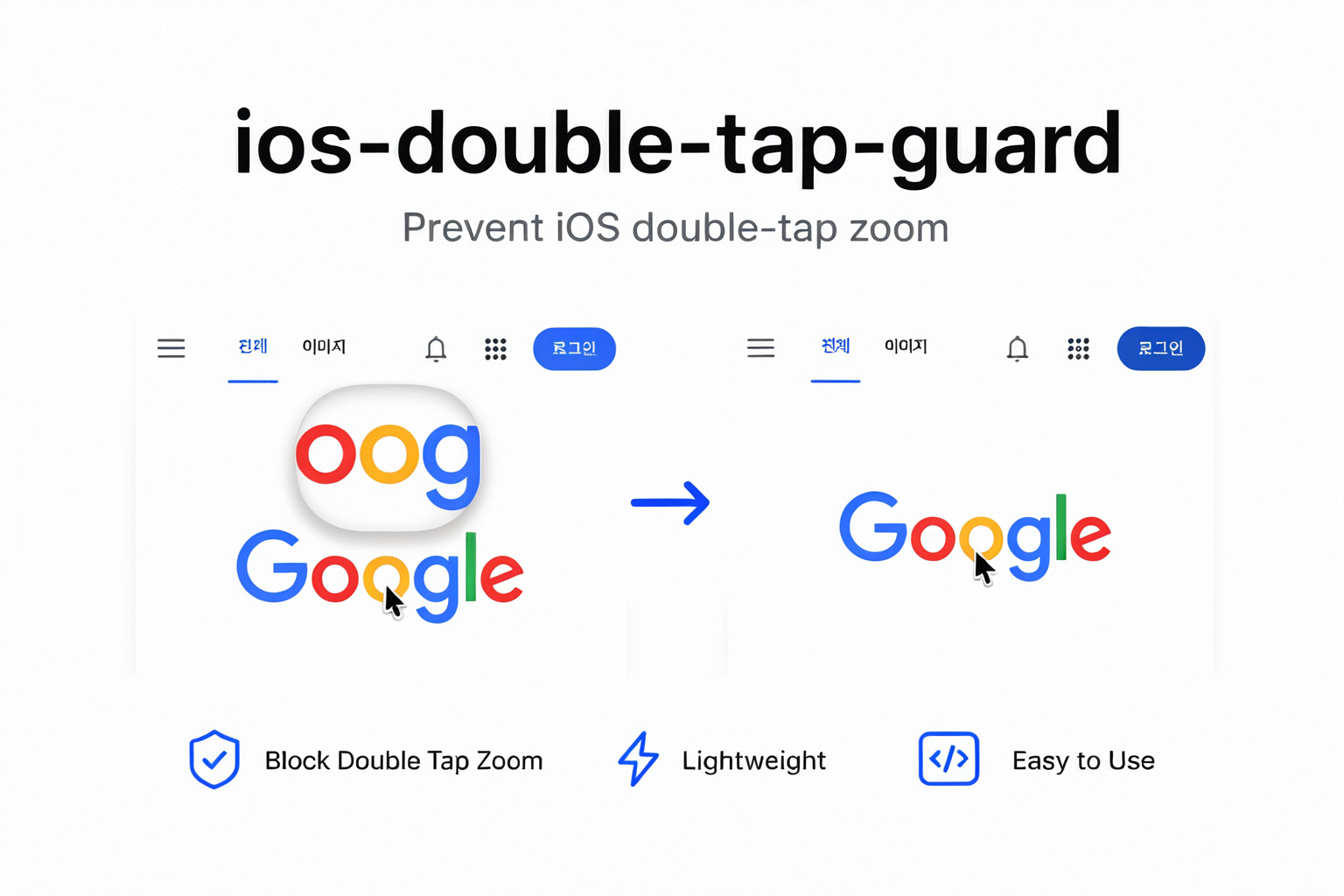
Building an app sometimes means combining native screens with web content. Feature-rich services such as Toss, Karrot, and CGV actively use hybrid structures that combine native UI with web content. This lets teams deliver web features quickly while maintaining a consistent app experience.
When you pay close attention to these apps, there are moments when you can guess which screen is running inside a WebView. Browser-specific interactions such as page transitions, scrolling behavior, and text selection can reveal it. Small details often expose a WebView more clearly than major features do.
I recently worked on a WKWebView-based app, keeping existing web features while making the experience feel as close to a native app as possible.
One small but noticeable problem remained. When a user quickly tapped ordinary text twice, the iOS text magnifier appeared. Nothing was technically broken, but that interaction immediately made the app feel like a website displayed inside a native shell.
I built a small npm package called ios-double-tap-guard to solve that problem.
A double tap that reveals the WebView#
WKWebView is a practical way to embed web features inside an app. It also brings Mobile Safari-style text interaction with it.
When the magnifier and text selection UI appear after double-tapping a button-like area or text that has no reason to be selected, the app experience suddenly feels less native. Users accustomed to polished touch experiences in apps such as Toss and Karrot can notice even this brief interruption. It is especially visible in dashboards, kiosks, games, management tools, and other touch-first interfaces.
It is possible to disable all text interaction through WebView configuration, but that can also affect text users genuinely need to select, along with form controls and editors. I did not want to remove every text feature. I wanted to stop only the accidental double-tap behavior on normal app surfaces.
ios-double-tap-guard#
ios-double-tap-guard prevents unwanted double-tap text magnifier interactions in iOS Safari and WKWebView.
Normal taps and scrolling remain available. Native text interaction is preserved by default for:
inputtextareaselect[contenteditable]
You can exclude additional elements with a CSS selector when users need to select or copy their content. The package also returns a cleanup function, making it easy to use with React and other component lifecycles.
It has zero runtime dependencies and includes TypeScript types, ESM, and CommonJS support. Importing it during server-side rendering is safe.
Installation#
npm install ios-double-tap-guardBasic usage#
Install the guard once after the web application mounts.
import { installIOSDoubleTapGuard } from "ios-double-tap-guard";

const removeDoubleTapGuard = installIOSDoubleTapGuard();
Call the returned function when the guard is no longer needed.
removeDoubleTapGuard();Using it with React#
In React, the guard can be wrapped in a small component and mounted in the app or WebView-specific layout.
import { useEffect } from "react";
import { installIOSDoubleTapGuard } from "ios-double-tap-guard";

export function IOSDoubleTapGuard() {
  useEffect(() => installIOSDoubleTapGuard(), []);

  return null;
}
export function AppLayout({ children }: { children: React.ReactNode }) {
return (
<>
<IOSDoubleTapGuard />
{children}
</>
);
}The cleanup function can be returned directly from useEffect, so no extra state management is required.
Where should it be installed for React Native WebView?#
This package runs in the web application loaded inside the WebView, not in React Native native code.
For example, if react-native-webview displays a Next.js application, install the package in that Next.js project. This setup also lets you adjust the behavior through a web deployment without shipping another native app update.
If the same web application serves regular browsers and a native WebView, enable the guard only inside the app.
const isNativeWebView = "ReactNativeWebView" in window;

const removeDoubleTapGuard = isNativeWebView
  ? installIOSDoubleTapGuard()
  : () => {};
You can also check an app-specific marker if your native layer injects one.
Keeping selected text interactive#
Invite codes, phone numbers, article content, and other values users may need to copy can remain selectable.
installIOSDoubleTapGuard({
  exclude: [
    "input",
    "textarea",
    "select",
    "[contenteditable]",
    ".selectable-text",
    "[data-allow-text-interaction]",
  ].join(", "),
});<p class="selectable-text">Users can select this text.</p>
<code data-allow-text-interaction>ACADEMY-2026</code>A custom exclude value replaces the default selector. Include the default selectors when inputs and editors should remain interactive.
Limiting it to one app surface#
The guard can be scoped to an app-like section instead of the entire document.
const appSurface = document.querySelector("[data-app-surface]");

if (appSurface) {
  installIOSDoubleTapGuard({ root: appSurface });
}
Scoping root is useful when regular reading content and touch-first UI exist on the same page.
Features that intentionally use double tap, such as image zoom or video seeking, should be added to exclude or placed outside the guarded root.
Try it#
The package is available on npm and GitHub.
- npm: https://www.npmjs.com/package/ios-double-tap-guard
- GitHub: https://github.com/JunDev76/ios-double-tap-guard
It is a tiny package, but it cleaned up one of those subtle interactions that can make a WebView-based app feel unfinished. Give it a try if you have run into the same issue. Bug reports and improvement ideas are welcome through GitHub issues.